
How discovery works
WinDiscovery uses discovery messages on the local network to locate Masterclock devices. In most environments, discovery is designed to work reliably when your PC and the device are on the same IP subnet and local broadcast traffic is permitted.
Common limitations
- Different subnets or VLANs: discovery traffic may not cross routed boundaries by default.
- Firewalls: host or network firewalls can block discovery traffic.
- Wireless networks: some Wi‑Fi networks isolate clients and block broadcast traffic.
What “normal” looks like
On a typical flat LAN, WinDiscovery should locate devices within a few seconds. If you recently changed IP addressing or moved equipment between networks, discovery may appear delayed while the network settles.
Discovery Options in WinDiscovery
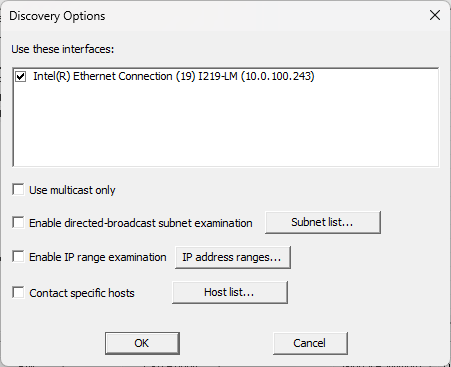
WinDiscovery includes a Discovery Options dialog that allows users to control how device discovery is performed on the network. This is intended for environments where the default discovery behavior is not sufficient due to network topology, segmentation, or policy.
By default, WinDiscovery listens for device discovery responses on the active network interface. In more complex networks, Discovery Options allow discovery to be constrained or expanded in a controlled way.
The Discovery Options dialog provides the following capabilities:
- Network interface selection: choose which local network interface WinDiscovery uses for discovery traffic.
- Multicast-only discovery: limit discovery requests to multicast traffic.
- Directed broadcast subnet examination: send directed broadcast discovery requests to specific subnets.
- IP address range examination: define one or more IP address ranges for WinDiscovery to examine directly.
- Specific host targeting: specify individual IP addresses or host entries for direct communication attempts.
These options do not change device configuration. They control only how WinDiscovery searches for devices on the network.
Related articles
Article ID: KB-WINDISC-006
KB Version: